Salesforce Integration
| Version | 1.7.0 (View all) |
| Subscription level What's this? |
Basic |
| Developed by What's this? |
Elastic |
| Ingestion method(s) | API |
| Minimum Kibana version(s) | 9.0.0 8.16.0 |
The Salesforce integration enables you to monitor your Salesforce instance. Salesforce is a customer relationship management (CRM) platform that supports businesses in managing marketing, sales, commerce, service, and IT teams from a unified platform accessible from anywhere.
You can use the Salesforce integration for:
Operational insights: Gain valuable insights into your organization's login and logout activities and other operational events.
Data visualization: Create detailed visualizations to monitor, measure, and analyze usage trends and key data, helping you derive actionable business insights.
Proactive alerts: Set up alerts to minimize Mean Time to Detection (MTTD) and Mean Time to Resolution (MTTR) by referencing relevant logs during troubleshooting.
Elastic Agent uses the Salesforce input to query the EventLogFile API and Real-Time Event Monitoring objects via SOQL over the REST API. Login and Logout data streams can collect from either EventLogFile or the LoginEvent/LogoutEvent platform events. The Apex data stream reads EventLogFile records; SetupAuditTrail data stream queries the SetupAuditTrail object. OAuth 2.0 authentication is provided through a Salesforce Connected App using either the JWT bearer flow or the Username-Password flow. Collection is interval-based, uses cursors to avoid duplicates, and supports backfilling with an initial time window.
login: Collects information related to users who log in to Salesforce.logout: Collects information related to users who log out from Salesforce.apex: Collects information about various Apex events such as Callout, Execution, REST API, SOAP API, Trigger, and so on.setupaudittrail: Collects information related to changes users made in the organization's setup area for the last 180 days.
The Salesforce integration collects the following events using the Salesforce REST API:
- Login EventLogFile
- Login Platform Events
- Logout EventLogFile
- Logout Platform Events
- Apex EventLogFile
- SetupAuditTrail Object
This integration has been tested against the Salesforce Winter '26 (v65.0). The minimum supported version is v46.0.
To determine your Salesforce instance version, use one of the following methods:
Salesforce Classic
On the
Hometab in Salesforce Classic, you can find a link in the top right corner that indicates the current release version of your Salesforce instance, for exampleSummer '24 for Developers.Use the Salesforce instance URL
Use your Salesforce instance URL in the following format:
<instance URL>/services/data(for example,https://na9.salesforce.com/services/data). In this example,https://na9.salesforce.comis the instance URL.Requesting the URL returns an XML response listing all available versions:
<Version>
    <label>Spring '25</label>
    <url>/services/data/v63.0</url>
    <version>63.0</version>
</Version>
<Version>
    <label>Summer '25</label>
    <url>/services/data/v64.0</url>
    <version>64.0</version>
</Version>
<Version>
    <label>Winter '26</label>
    <url>/services/data/v65.0</url>
    <version>65.0</version>
</Version>
The last entry in the list indicates the current version of your Salesforce instance. In this example, the current version is Winter '26 (v65.0).
The Salesforce integration collects the following data streams:
login: Collects information related to users who log in to Salesforce.logout: Collects information related to users who log out from Salesforce.apex: Collects information about various Apex events such asApexCallout,ApexExecution,ApexRestApi,ApexSoap,ApexTrigger, andExternalCustomApexCallout.setupaudittrail: Collects information related to changes users made in the organization's setup area for the last 180 days.
The Salesforce integration collects the following events using the Salesforce REST API:
- For
login— Login EventLogFile and Login Platform Events - For
logout— Logout EventLogFile and Logout Platform Events - For
apex— Apex EventLogFile - For
setupaudittrail— SetupAuditTrail Object
You need Elasticsearch to store and search your data and Kibana to visualize and manage it. You can use our hosted Elasticsearch Service on Elastic Cloud, which is recommended, or self-manage the Elastic Stack on your hardware.
Make sure API Enabled permission is selected for the user profile in your Salesforce instance:
- Go to
Setup>Quick Findand typeUsers. - Select
Usersfrom the left navigation tree. - In the
Full Namecolumn, select the name associated with the user account used for data collection. - Search for the
API Enabledpermission on the profile page. If it’s not present, search underSystem Permissionsand check if theAPI Enabledprivilege is selected. If not, enable it for data collection.
- Go to
Make sure that collecting data using Real-Time Event Monitoring API is enabled:
- Go to
Setup>Quick Findand typeEvent Manager. - Select
Event Managerfrom the left navigation tree. - To monitor an event, for example, Login Event, or Logout Event, click the dropdown arrow and select
Enable Storage. - Check if you have the required permissions:
View Real-Time Event Monitoring Data.
- Go to
Real-Time Event Monitoring may require additional licensing. Check your subscription level with your Salesforce account representative.
For step-by-step instructions on how to set up an integration, see Getting started.
- Install Elastic Agent and enroll it in Fleet.
- In Fleet, add the Salesforce integration and enable the
apex,login,logout, and/orsetupaudittraildata streams as needed. - Enter your Salesforce instance URL and API version.
- Choose an authentication method:
- JWT bearer flow: set Client ID, Username, Private key path (PEM), and JWT audience URL.
- Username‑Password flow: set Client ID, Client Secret, Username, Password (+ security token if required), and Token URL (base domain).
- For
loginandlogout, choose which sources to collect:- EventLogFile (batch logs)
- Platform Events (
LoginEvent,LogoutEvent)
- Optional tuning:
- Set an initial interval to backfill historical data.
- Adjust the collection interval per source.
- Optionally filter EventLogFile by log file interval (for example, hourly).
- In Advanced options, adjust the request timeout if Salesforce responses are slow.
To configure the Salesforce integration, you need the following information:
- Salesforce instance URL
- Authentication methods: choose one of the following and gather the required values:
- JWT bearer flow: Client ID, Username, JWT audience URL, Private key path (PEM)
- Username-Password flow: Client ID, Client Secret, Username, Password (+ security token if required), Token URL (base domain)
- API version
Choose one of the following OAuth 2.0 flows when configuring authentication:
- Use a Salesforce Connected App with a certificate/private key.
- Required settings include: Client ID, Username, JWT audience URL, and the path to the private key file.
- In the integration settings, enable
Enable JWT Authentication.
- Uses a Connected App with client secret and a named integration user.
- Required settings include: Client ID, Client Secret, Username, Password (append security token if required), and the Token URL (or your custom domain).
- Suitable for quick setup.
Leave Enable JWT Authentication disabled to use the Username-Password flow.
This is the URL of your Salesforce organization.
Salesforce Classic: Given the example URL https://na9.salesforce.com/home/home.jsp, the Salesforce Instance URL is extracted as https://na9.salesforce.com.
Salesforce Lightning: The instance URL is available under your user name in the
View Profiletab. Use the correct instance URL in case of Salesforce Lightning because it uses *.lightning.force.com but the instance URL is *.salesforce.com.
Create a Salesforce Connected App (supports both JWT Bearer and Username-Password flows):
- Log in to Salesforce (Lightning UI).
- From
Setup, inQuick FindenterExternal Client Appsand selectSettings. Turn onAllow creation of connected apps. To create a connected app, selectNew Connected App. - Fill
Basic Information:Connected App Name,API Name,Contact Email. - In
API (Enable OAuth Settings), checkEnable OAuth Settings. Callback URL:- Web apps: your app callback (for example,
https://yourapp.example.com/callback). - Not used by the JWT or Username-Password flows, but Salesforce requires a value; you can enter your instance URL.
- Web apps: your app callback (for example,
- Select OAuth scopes:
Manage user data via APIs (api)Perform requests at any time (refresh_token, offline_access)- (Optional)
Full access (full)
- Click
Save. It can take up to 10 minutes for the Connected App to propagate. - After saving, open
Manage Consumer Detailsto obtainConsumer KeyandConsumer Secret.
JWT Bearer flow (optional, recommended method):
- Generate an RSA key pair and a certificate (PEM) for signing.
- In the Connected App, upload the certificate in
Use digital signatures(underAPI (Enable OAuth Settings)) for JWT. - Note the audience URL to use (typically
https://login.salesforce.comorhttps://test.salesforce.comfor sandbox). - In Elastic, set
Client ID,Username,Private key path (PEM), andJWT audience URL.
Username-Password flow (alternative):
- Use the
Connected App'sConsumer KeyandConsumer Secret. - In Elastic, set
Username,Password(append security token if required),Client ID,Client Secret, andToken URL(instance base domain;/services/oauth2/tokenis appended internally).
For security reasons, Salesforce blocks the OAuth 2.0 Username-Password flow by default in recent releases. Prefer the JWT bearer flow. If you must use the Username-Password flow, in OAuth and OpenID Connect Settings, select Allow OAuth Username-Password Flows. For more information, see the Salesforce release note: Username-Password OAuth flow blocked by default.
For official steps, see Salesforce docs: Create a Connected App (Basics), OAuth 2.0 JWT Bearer Flow, and OAuth 2.0 Username-Password Flow
The email address or username associated with your Salesforce account used for authentication.
The password used to authenticate the user with your Salesforce instance.
When using a Salesforce instance with a security token, append the token directly to your password without spaces or special characters. For example, if your password is password and your security token is 12345, enter: password12345.
The Salesforce integration uses the token URL to obtain authentication tokens for API access. Important: The integration internally appends /services/oauth2/token to the URL you provide, so you should enter only the base URL.
- For most Salesforce instances, enter:
https://login.salesforce.com - For Salesforce sandbox environments, enter:
https://test.salesforce.com - For custom Salesforce domains, enter your custom domain base URL. For example, if your custom domain is
mycompany.my.salesforce.com, enter:https://mycompany.my.salesforce.com
In most cases, the Token URL is the same as the Salesforce instance URL.
Salesforce Lightning users must use a URL with the *.salesforce.com domain (the same as the instance URL) instead of *.lightning.force.com because the Salesforce API does not work with *.lightning.force.com.
To find the API version:
- Go to
Setup>Quick Find>Apex Classes. - Click
New. - Click the
Version Settingstab. - Refer to the
Versiondropdown for the API Version number.
Alternatively, you can use the Salesforce instance API version as described in the "Compatibility" section.
Once the Salesforce integration is successfully configured, follow these steps to validate the setup:
- Navigate to the
Assetstab in the Salesforce Integration. You will find a list of available dashboards related to your configured data streams. - Select the dashboard relevant to your data stream (for example, login, logout, apex, setupaudittrail).
- Verify that the dashboard is populated with the expected data.
If the dashboard displays the data correctly, your integration is successfully validated.
This integration ships curated Kibana dashboards for each data stream. After data starts flowing, open the Salesforce integration and go to the Assets tab to launch:
- Apex dashboard
- Login dashboard
- Logout dashboard
- SetupAuditTrail dashboard
With version 0.15.0, we've significantly enhanced the Salesforce integration, introducing major changes in data collection mechanisms, authentication, and data streams. Due to these changes, we recommend using Salesforce integration v0.15.0 or above and uninstalling previous versions.
- Unified data collection: The integration now uses a single Filebeat input (Salesforce input) for data collection from EventLogFile and Real-time Event Monitoring APIs.
- JWT authentication: Introduced JWT authentication mechanism.
- Expanded configuration options: Added
initial_intervaland other options to fine-tune data collection, including historical data retrieval. - Change in data-collection mechanism: Replaced Streaming API (cometd) with Real-time Event Monitoring APIs.
- Performance optimization: Significantly reduced CPU and memory usage during data collection.
- Enhanced dashboards: Improved visualizations.
- Data stream consolidation: Reduced from 6 to 4 data streams —
apex,login,logout, andsetupaudittrail. - Field mapping updates: Modified mappings for multiple fields.
- Additional changes: Several other adjustments have been made to improve the overall performance and functionality of the integration.
This section provides solutions to common issues you might encounter while using the Salesforce integration.
If you experience delays in the response from the Salesforce server in the apex, login, logout, or setupaudittrail data streams, you might encounter a similar error:
Error while processing http request: failed to execute rf.collectResponse: failed to execute http client.Do: failed to execute http client.Do: failed to read http.response.body
Solution: Consider increasing the Request timeout setting in the Advanced options section for the affected data stream.
If you encounter data ingestion errors, you might get the following error message:
400 Bad Request
Solution: Make sure that the API Enabled permission is granted to the profile associated with the username used for the integration. For more information, check the What do I need to use this integration? section.
If the error persists, follow these steps:
- Navigate to
Setup>Quick Find>App Manager. - Locate the app and click the corresponding arrow to view available actions.
- Click
View. - Obtain the client key and secret by clicking on
Manage Consumer Detailsin the API section. - Click
Manageto edit the policies. - Click
Edit Policiesand chooseRelax IP restrictionsfrom the dropdown menu for IP Relaxation.
CLIENT_ID=""
CLIENT_SECRET=""
USERNAME=""
PASSWORD=""
SECURITY_TOKEN=""
TOKEN_URL="https://<your-instance>.my.salesforce.com/services/oauth2/token"

curl -v -X POST "${TOKEN_URL}" \
     -d "grant_type=password" \
     -d "client_id=${CLIENT_ID}" \
     -d "client_secret=${CLIENT_SECRET}" \
     -d "username=${USERNAME}" \
     -d "password=${PASSWORD}${SECURITY_TOKEN}"
- Replace with your client ID
- Replace with your client secret
- Replace with your Salesforce username
- Replace with your Salesforce password
- Replace with your Salesforce security token (if applicable). Else, leave it blank.
- Replace with your Salesforce instance URL
The script has been tested on Unix-based systems (macOS, Linux). If you use a different operating system, you might need to adjust the command accordingly.
This command is useful for debugging and troubleshooting OAuth 2.0 authentication with Salesforce Connected Apps. It is recommended to use a tool like curl for testing OAuth 2.0 authentication before setting up the full Salesforce integration. This approach allows you to verify the authentication process and identify any potential issues early when setting up the full Salesforce integration. If the request is successful, the response will contain an access token that can be used to authenticate subsequent requests to the Salesforce API. If the request fails, the response will contain an error message indicating the reason for the failure.
- Collection intervals: Longer intervals reduce API usage and agent load; shorter intervals increase freshness at the cost of API calls and resource usage.
- Backfill: Use the initial interval to safely ingest historical data. Large backfills may consume significant Salesforce API quotas; consider staging by data stream.
- Login/Logout sources: EventLogFile is efficient for batched reporting; Platform Events provide lower-latency signals but may have throughput and retention limits in your org.
- Timeouts: Increase the request timeout in Advanced options if Salesforce responses are slow or large result sets are expected.
- Salesforce input: https://www.elastic.co/guide/en/beats/filebeat/current/filebeat-input-salesforce.html
The apex data stream captures events related to Apex operations, enabling developers to access the Salesforce platform back-end database and client-server interfaces to create third-party SaaS applications.
Example
{
    "@timestamp": "2022-11-22T04:46:15.591Z",
    "agent": {
        "ephemeral_id": "bcd82746-7d4f-4c15-8288-e159f8223e86",
        "id": "ea40bcb3-cd35-4db9-b0d3-81d94e75b64d",
        "name": "docker-fleet-agent",
        "type": "filebeat",
        "version": "8.14.0"
    },
    "data_stream": {
        "dataset": "salesforce.apex",
        "namespace": "ep",
        "type": "logs"
    },
    "ecs": {
        "version": "8.11.0"
    },
    "elastic_agent": {
        "id": "ea40bcb3-cd35-4db9-b0d3-81d94e75b64d",
        "snapshot": false,
        "version": "8.14.0"
    },
    "event": {
        "action": "apex-callout",
        "agent_id_status": "verified",
        "category": [
            "network"
        ],
        "dataset": "salesforce.apex",
        "duration": 1293,
        "ingested": "2024-06-21T16:36:07Z",
        "kind": "event",
        "original": "{\"CLIENT_IP\":\"81.2.69.142\",\"CPU_TIME\":\"10\",\"EVENT_TYPE\":\"ApexCallout\",\"LOGIN_KEY\":\"Obv9123BzbaxqCo1\",\"METHOD\":\"GET\",\"ORGANIZATION_ID\":\"00D5j000000001V\",\"REQUEST_ID\":\"4exLFFQZ1234xFl1cJNwOV\",\"REQUEST_SIZE\":\"10\",\"RESPONSE_SIZE\":\"256\",\"RUN_TIME\":\"1305\",\"SESSION_KEY\":\"WvtsJ1235oW24EbH\",\"SUCCESS\":\"1\",\"TIME\":\"1293\",\"TIMESTAMP\":\"20221122044615.591\",\"TIMESTAMP_DERIVED\":\"2022-11-22T04:46:15.591Z\",\"TYPE\":\"OData\",\"URI\":\"CALLOUT-LOG\",\"URI_ID_DERIVED\":\"0055j000000utlPAQZB\",\"URL\":\"https://temp.sh/odata/Accounts\",\"USER_ID\":\"0055j0000000001\",\"USER_ID_DERIVED\":\"0055j012345utlPAAQ\"}",
        "outcome": "success",
        "provider": "EventLogFile",
        "type": [
            "connection"
        ],
        "url": "https://temp.sh/odata/Accounts"
    },
    "host": {
        "architecture": "x86_64",
        "containerized": true,
        "hostname": "docker-fleet-agent",
        "id": "345c85cf1fe945e2b19719b370c09a48",
        "ip": [
            "192.168.251.7"
        ],
        "mac": [
            "02-42-C0-A8-FB-07"
        ],
        "name": "docker-fleet-agent",
        "os": {
            "codename": "focal",
            "family": "debian",
            "kernel": "3.10.0-1160.114.2.el7.x86_64",
            "name": "Ubuntu",
            "platform": "ubuntu",
            "type": "linux",
            "version": "20.04.6 LTS (Focal Fossa)"
        }
    },
    "http": {
        "request": {
            "bytes": 10,
            "method": "GET"
        },
        "response": {
            "bytes": 256
        }
    },
    "input": {
        "type": "salesforce"
    },
    "related": {
        "ip": [
            "81.2.69.142"
        ]
    },
    "salesforce": {
        "apex": {
            "cpu_time": 10,
            "event_type": "ApexCallout",
            "login_key": "Obv9123BzbaxqCo1",
            "organization_id": "00D5j000000001V",
            "request_id": "4exLFFQZ1234xFl1cJNwOV",
            "run_time": 1305,
            "type": "OData",
            "uri": "CALLOUT-LOG",
            "uri_derived_id": "0055j000000utlPAQZB",
            "user_id_derived": "0055j012345utlPAAQ"
        },
        "instance_url": "http://elastic-package-service-salesforce-1:8010"
    },
    "source": {
        "geo": {
            "city_name": "London",
            "continent_name": "Europe",
            "country_iso_code": "GB",
            "country_name": "United Kingdom",
            "location": {
                "lat": 51.5142,
                "lon": -0.0931
            },
            "region_iso_code": "GB-ENG",
            "region_name": "England"
        },
        "ip": "81.2.69.142"
    },
    "tags": [
        "preserve_original_event",
        "salesforce-apex"
    ],
    "user": {
        "id": "0055j0000000001"
    }
}
Exported fields
| Field | Description | Type | Unit | Metric Type |
|---|---|---|---|---|
| @timestamp | Event timestamp. | date | ||
| data_stream.dataset | Data stream dataset. | constant_keyword | ||
| data_stream.namespace | Data stream namespace. | constant_keyword | ||
| data_stream.type | Data stream type. | constant_keyword | ||
| input.type | Input type. | keyword | ||
| salesforce.apex.action | Action performed by the callout. | keyword | ||
| salesforce.apex.callout_time | Time spent waiting on web service callouts, in milliseconds. | float | ms | gauge |
| salesforce.apex.class_name | The Apex class name. If the class is part of a managed package, this string includes the package namespace. | keyword | ||
| salesforce.apex.client_name | The name of the client that's using Salesforce services. This field is an optional parameter that can be passed in API calls. If blank, the caller didn't specify a client in the CallOptions header. | keyword | ||
| salesforce.apex.cpu_time | The CPU time in milliseconds used to complete the request. | float | ms | gauge |
| salesforce.apex.db_blocks | Indicates how much activity is occurring in the database. A high value for this field suggests that adding indexes or filters on your queries would benefit performance. | long | gauge | |
| salesforce.apex.db_cpu_time | The CPU time in milliseconds to complete the request. Indicates the amount of activity taking place in the database layer during the request. | float | ms | gauge |
| salesforce.apex.db_total_time | Time (in milliseconds) spent waiting for database processing in aggregate for all operations in the request. Compare this field to cpu_time to determine whether performance issues are occurring in the database layer or in your own code. | float | ms | gauge |
| salesforce.apex.entity | Name of the external object being accessed. | keyword | ||
| salesforce.apex.entity_name | The name of the object affected by the trigger. | keyword | ||
| salesforce.apex.entry_point | The entry point for this Apex execution. | keyword | ||
| salesforce.apex.event_type | The type of event. | keyword | ||
| salesforce.apex.execute_ms | How long it took (in milliseconds) for Salesforce to prepare and execute the query. Available in API version 42.0 and later. | float | ms | gauge |
| salesforce.apex.fetch_ms | How long it took (in milliseconds) to retrieve the query results from the external system. Available in API version 42.0 and later. | float | ms | gauge |
| salesforce.apex.fields_count | The number of fields or columns, where applicable. | long | ||
| salesforce.apex.filter | Field expressions to filter which rows to return. Corresponds to WHERE in SOQL queries. | keyword | ||
| salesforce.apex.is_long_running_request | Indicates whether the request is counted against your org's concurrent long-running Apex request limit. | boolean | ||
| salesforce.apex.limit | Maximum number of rows to return for a query. Corresponds to LIMIT in SOQL queries. | long | ||
| salesforce.apex.limit_usage_pct | The percentage of Apex SOAP calls that were made against the organization's limit. | float | percent | gauge |
| salesforce.apex.login_key | The string that ties together all events in a given user's login session. It starts with a login event and ends with either a logout event or the user session expiring. | keyword | ||
| salesforce.apex.media_type | The media type of the response. | keyword | ||
| salesforce.apex.message | Error or warning message associated with the failed call. | text | ||
| salesforce.apex.method_name | The name of the calling Apex method. | keyword | ||
| salesforce.apex.offset | Number of rows to skip when paging through a result set. Corresponds to OFFSET in SOQL queries. | long | ||
| salesforce.apex.orderby | Field or column to use for sorting query results, and whether to sort the results in ascending (default) or descending order. Corresponds to ORDER BY in SOQL queries. | keyword | ||
| salesforce.apex.organization_id | The 15-character ID of the organization. | keyword | ||
| salesforce.apex.query | The SOQL query, if one was performed. | keyword | ||
| salesforce.apex.quiddity | The type of outer execution associated with this event. | keyword | ||
| salesforce.apex.request_id | The unique ID of a single transaction. A transaction can contain one or more events. Each event in a given transaction has the same request_id. | keyword | ||
| salesforce.apex.request_status | The status of the request for a page view or user interface action. | keyword | ||
| salesforce.apex.rows_fetched | Number of rows fetched by the callout. Available in API version 42.0 and later. | long | ||
| salesforce.apex.rows_processed | The number of rows that were processed in the request. | long | ||
| salesforce.apex.rows_total | Total number of records in the result set. The value is always -1 if the custom adapter's DataSource.Provider class doesn't declare the QUERY_TOTAL_SIZE capability. | long | ||
| salesforce.apex.run_time | The amount of time that the request took in milliseconds. | float | ms | gauge |
| salesforce.apex.select | Comma-separated list of fields being queried. Corresponds to SELECT in SOQL queries. | keyword | ||
| salesforce.apex.soql_queries_count | The number of SOQL queries that were executed during the event. | long | ||
| salesforce.apex.subqueries | Reserved for future use. | keyword | ||
| salesforce.apex.throughput | Number of records retrieved in one second. | float | gauge | |
| salesforce.apex.trigger_id | The 15-character ID of the trigger that was fired. | keyword | ||
| salesforce.apex.trigger_name | For triggers coming from managed packages, trigger_name includes a namespace prefix separated with a dot (.) character. If no namespace prefix is present, the trigger is from an unmanaged trigger. | keyword | ||
| salesforce.apex.trigger_type | The type of this trigger. | keyword | ||
| salesforce.apex.type | The type of Apex callout. | keyword | ||
| salesforce.apex.uri | The URI of the page that's receiving the request. | keyword | ||
| salesforce.apex.uri_derived_id | The 18-character case-safe ID of the URI of the page that's receiving the request. | keyword | ||
| salesforce.apex.user_agent | The numeric code for the type of client used to make the request (for example, the browser, application, or API). | keyword | ||
| salesforce.apex.user_id_derived | The 18-character case-safe ID of the user who's using Salesforce services through the UI or the API. | keyword | ||
| salesforce.instance_url | The Salesforce instance URL. | keyword |
The login data stream captures events that detail the login history of users within your Salesforce organization. This data stream provides insights into user authentication activities, helping you monitor and analyze login patterns, detect anomalies, and ensure security compliance.
Example
{
    "@timestamp": "2022-11-22T04:46:15.591Z",
    "agent": {
        "ephemeral_id": "b02f2751-9a38-4438-8b75-937262b340bc",
        "id": "ea40bcb3-cd35-4db9-b0d3-81d94e75b64d",
        "name": "docker-fleet-agent",
        "type": "filebeat",
        "version": "8.14.0"
    },
    "data_stream": {
        "dataset": "salesforce.login",
        "namespace": "ep",
        "type": "logs"
    },
    "ecs": {
        "version": "8.11.0"
    },
    "elastic_agent": {
        "id": "ea40bcb3-cd35-4db9-b0d3-81d94e75b64d",
        "snapshot": false,
        "version": "8.14.0"
    },
    "event": {
        "action": "login-attempt",
        "agent_id_status": "verified",
        "category": [
            "authentication"
        ],
        "dataset": "salesforce.login",
        "ingested": "2024-06-21T16:46:09Z",
        "kind": "event",
        "module": "salesforce",
        "original": "{\"API_TYPE\":\"f\",\"API_VERSION\":\"9998.0\",\"AUTHENTICATION_METHOD_REFERENCE\":\"\",\"BROWSER_TYPE\":\"Mozilla/5.0 (Windows NT 10.0; Win64; x64) AppleWebKit/537.36 (KHTML, like Gecko) Chrome/94.0.4606.71 Safari/537.36\",\"CIPHER_SUITE\":\"ECDHE-RSA-AES256-GCM-SHA384\",\"CLIENT_IP\":\"81.2.69.142\",\"CPU_TIME\":\"30\",\"DB_TOTAL_TIME\":\"52435102\",\"EVENT_TYPE\":\"Login\",\"LOGIN_KEY\":\"QfNecrLXSII6fsBq\",\"LOGIN_STATUS\":\"LOGIN_NO_ERROR\",\"ORGANIZATION_ID\":\"00D5j000000VI3n\",\"REQUEST_ID\":\"4ehU_U-nbQyAPFl1cJILm-\",\"REQUEST_STATUS\":\"Success\",\"RUN_TIME\":\"83\",\"SESSION_KEY\":\"\",\"SOURCE_IP\":\"81.2.69.142\",\"TIMESTAMP\":\"20221122044615.591\",\"TIMESTAMP_DERIVED\":\"2022-11-22T04:46:15.591Z\",\"TLS_PROTOCOL\":\"TLSv1.2\",\"URI\":\"/index.jsp\",\"URI_ID_DERIVED\":\"s4heK3WbH-lcJIL3-n\",\"USER_ID\":\"0055j000000utlP\",\"USER_ID_DERIVED\":\"0055j000000utlPAAQ\",\"USER_NAME\":\"[email protected]\",\"USER_TYPE\":\"Standard\"}",
        "outcome": "success",
        "provider": "EventLogFile",
        "type": [
            "info"
        ],
        "url": "/index.jsp"
    },
    "host": {
        "architecture": "x86_64",
        "containerized": true,
        "hostname": "docker-fleet-agent",
        "id": "345c85cf1fe945e2b19719b370c09a48",
        "ip": [
            "192.168.251.7"
        ],
        "mac": [
            "02-42-C0-A8-FB-07"
        ],
        "name": "docker-fleet-agent",
        "os": {
            "codename": "focal",
            "family": "debian",
            "kernel": "3.10.0-1160.114.2.el7.x86_64",
            "name": "Ubuntu",
            "platform": "ubuntu",
            "type": "linux",
            "version": "20.04.6 LTS (Focal Fossa)"
        }
    },
    "input": {
        "type": "salesforce"
    },
    "related": {
        "ip": [
            "81.2.69.142"
        ]
    },
    "salesforce": {
        "instance_url": "http://elastic-package-service-salesforce-1:8010",
        "login": {
            "api": {
                "type": "Feed",
                "version": "9998.0"
            },
            "client": {
                "ip": "81.2.69.142"
            },
            "cpu_time": 30,
            "db_total_time": 52435102,
            "event_type": "Login",
            "key": "QfNecrLXSII6fsBq",
            "organization_id": "00D5j000000VI3n",
            "request": {
                "id": "4ehU_U-nbQyAPFl1cJILm-",
                "status": "Success"
            },
            "run_time": 83,
            "uri": {
                "id": "s4heK3WbH-lcJIL3-n"
            },
            "user_id": "0055j000000utlP"
        }
    },
    "source": {
        "geo": {
            "city_name": "London",
            "continent_name": "Europe",
            "country_iso_code": "GB",
            "country_name": "United Kingdom",
            "location": {
                "lat": 51.5142,
                "lon": -0.0931
            },
            "region_iso_code": "GB-ENG",
            "region_name": "England"
        },
        "ip": "81.2.69.142"
    },
    "tags": [
        "preserve_original_event",
        "salesforce-login"
    ],
    "tls": {
        "cipher": "ECDHE-RSA-AES256-GCM-SHA384",
        "version": "1.2",
        "version_protocol": "TLS"
    },
    "user": {
        "email": "[email protected]",
        "id": "0055j000000utlPAAQ",
        "roles": [
            "Standard"
        ]
    },
    "user_agent": {
        "device": {
            "name": "Other"
        },
        "name": "Chrome",
        "os": {
            "full": "Windows 10",
            "name": "Windows",
            "version": "10"
        }
    }
}
Exported fields
| Field | Description | Type | Unit | Metric Type |
|---|---|---|---|---|
| @timestamp | Event timestamp. | date | ||
| data_stream.dataset | Data stream dataset. | constant_keyword | ||
| data_stream.namespace | Data stream namespace. | constant_keyword | ||
| data_stream.type | Data stream type. | constant_keyword | ||
| input.type | Input type. | keyword | ||
| salesforce.instance_url | The Salesforce instance URL. | keyword | ||
| salesforce.login.additional_info | Additional information that's captured from the HTTP headers during a login request. | match_only_text | ||
| salesforce.login.api.type | The type of Salesforce API request. | keyword | ||
| salesforce.login.api.version | The version of the Salesforce API used for the login request. | keyword | ||
| salesforce.login.application | The application used to access the Salesforce organization. | keyword | ||
| salesforce.login.auth.method_reference | The authentication method reference used by a third-party identity provider for SSO using the OpenID Connect protocol. This field is available in API version 51.0 and later. | keyword | ||
| salesforce.login.auth.service_id | The authentication service ID used by a third-party identity provider for single sign-on (SSO) using the OpenID Connect protocol. | keyword | ||
| salesforce.login.client.ip | The IP address of the client using Salesforce services. Internal Salesforce IP addresses are shown as "Salesforce.com IP". | ip | ||
| salesforce.login.client_version | The version of the client used for the login request. | keyword | ||
| salesforce.login.cpu_time | The CPU time in milliseconds used to complete the login request, indicating the amount of activity in the application server layer. | long | ms | gauge |
| salesforce.login.db_total_time | The time in nanoseconds for the database round trip during login, including time spent in the JDBC driver, network, and database CPU time. | long | nanos | gauge |
| salesforce.login.evaluation_time | The amount of time it took to evaluate the transaction security policy, in milliseconds. This field is available in API version 46.0 and later. | double | ms | gauge |
| salesforce.login.event_type | The type of event. For login events, the value is always "Login". | keyword | ||
| salesforce.login.geo_id | The Salesforce ID of the LoginGeo object associated with the user's IP address during login. | keyword | ||
| salesforce.login.history_id | The identifier that tracks a user session, allowing correlation of user activity with a specific login instance. | keyword | ||
| salesforce.login.key | The string that ties together all events in a given user's login session, starting with the login event and ending with either a logout event or the user session expiring. | keyword | ||
| salesforce.login.organization_id | The 15-character ID of the Salesforce organization. | keyword | ||
| salesforce.login.related_event_identifier | The identifier of a related event associated with the login event. | keyword | ||
| salesforce.login.request.id | The unique identifier for the login request transaction. | keyword | ||
| salesforce.login.request.status | The status of the login request (e.g., Success, Failed). | keyword | ||
| salesforce.login.run_time | The total time in milliseconds taken by the login request. | long | ms | gauge |
| salesforce.login.transaction_security.policy.id | The ID of the transaction security policy used to evaluate the login event. | keyword | ||
| salesforce.login.transaction_security.policy.outcome | The outcome of the transaction security policy evaluation (e.g., Block, Notified, NoAction). | keyword | ||
| salesforce.login.type | The type of login used to access the session. | keyword | ||
| salesforce.login.uri.id | The 18-character case-safe ID of the URI of the page receiving the login request. | keyword | ||
| salesforce.login.user_id | The 15-character ID of the user logging in to Salesforce. | keyword |
The logout data stream captures events that detail the logout history of users within your Salesforce organization. This data stream provides insights into user authentication activities, helping you monitor and analyze logout patterns, detect anomalies, and ensure security compliance.
Example
{
    "@timestamp": "2022-11-22T07:37:25.779Z",
    "agent": {
        "ephemeral_id": "222f4fde-1141-42af-adaf-4b86e6aa9c18",
        "id": "ea40bcb3-cd35-4db9-b0d3-81d94e75b64d",
        "name": "docker-fleet-agent",
        "type": "filebeat",
        "version": "8.14.0"
    },
    "data_stream": {
        "dataset": "salesforce.logout",
        "namespace": "ep",
        "type": "logs"
    },
    "ecs": {
        "version": "8.11.0"
    },
    "elastic_agent": {
        "id": "ea40bcb3-cd35-4db9-b0d3-81d94e75b64d",
        "snapshot": false,
        "version": "8.14.0"
    },
    "event": {
        "action": "logout",
        "agent_id_status": "verified",
        "category": [
            "authentication"
        ],
        "code": "4exLFFQZ1234xFl1cJNwOV",
        "dataset": "salesforce.logout",
        "ingested": "2024-06-21T16:47:21Z",
        "kind": "event",
        "module": "salesforce",
        "original": "{\"API_TYPE\":\"f\",\"API_VERSION\":\"54.0\",\"APP_TYPE\":\"1000\",\"BROWSER_TYPE\":\"Mozilla/5.0 (Windows NT 10.0; Win64; x64) AppleWebKit/537.36 (KHTML, like Gecko) Chrome/94.0.4606.81 Safari/537.36\",\"CLIENT_IP\":\"81.2.69.142\",\"CLIENT_VERSION\":\"9998\",\"EVENT_TYPE\":\"Logout\",\"LOGIN_KEY\":\"Obv9123BzbaxqCo1\",\"ORGANIZATION_ID\":\"00D5j001234VI3n\",\"PLATFORM_TYPE\":\"1015\",\"REQUEST_ID\":\"4exLFFQZ1234xFl1cJNwOV\",\"RESOLUTION_TYPE\":\"9999\",\"SESSION_KEY\":\"WvtsJ1235oW24EbH\",\"SESSION_LEVEL\":\"1\",\"SESSION_TYPE\":\"O\",\"TIMESTAMP\":\"20221122073725.779\",\"TIMESTAMP_DERIVED\":\"2022-11-22T07:37:25.779Z\",\"USER_ID\":\"0055j000000utlP\",\"USER_ID_DERIVED\":\"0055j000000utlPAAQ\",\"USER_INITIATED_LOGOUT\":\"0\",\"USER_TYPE\":\"S\"}",
        "provider": "EventLogFile",
        "type": [
            "info"
        ]
    },
    "host": {
        "architecture": "x86_64",
        "containerized": true,
        "hostname": "docker-fleet-agent",
        "id": "345c85cf1fe945e2b19719b370c09a48",
        "ip": [
            "192.168.251.7"
        ],
        "mac": [
            "02-42-C0-A8-FB-07"
        ],
        "name": "docker-fleet-agent",
        "os": {
            "codename": "focal",
            "family": "debian",
            "kernel": "3.10.0-1160.114.2.el7.x86_64",
            "name": "Ubuntu",
            "platform": "ubuntu",
            "type": "linux",
            "version": "20.04.6 LTS (Focal Fossa)"
        }
    },
    "input": {
        "type": "salesforce"
    },
    "related": {
        "ip": [
            "81.2.69.142"
        ]
    },
    "salesforce": {
        "instance_url": "http://elastic-package-service-salesforce-1:8010",
        "logout": {
            "api": {
                "type": "Feed",
                "version": "54.0"
            },
            "app_type": "Application",
            "browser_type": "Mozilla/5.0 (Windows NT 10.0; Win64; x64) AppleWebKit/537.36 (KHTML, like Gecko) Chrome/94.0.4606.81 Safari/537.36",
            "client_version": "9998",
            "event_type": "Logout",
            "login_key": "Obv9123BzbaxqCo1",
            "organization_id": "00D5j001234VI3n",
            "platform_type": "Windows 10",
            "resolution_type": "9999",
            "session": {
                "level": "Standard Session",
                "type": "Oauth2"
            },
            "user": {
                "roles": [
                    "Standard"
                ]
            },
            "user_id": "0055j000000utlP",
            "user_initiated_logout": "0"
        }
    },
    "source": {
        "geo": {
            "city_name": "London",
            "continent_name": "Europe",
            "country_iso_code": "GB",
            "country_name": "United Kingdom",
            "location": {
                "lat": 51.5142,
                "lon": -0.0931
            },
            "region_iso_code": "GB-ENG",
            "region_name": "England"
        },
        "ip": "81.2.69.142"
    },
    "tags": [
        "preserve_original_event",
        "salesforce-logout"
    ],
    "user": {
        "id": "0055j000000utlPAAQ"
    }
}
Exported fields
| Field | Description | Type |
|---|---|---|
| @timestamp | Event timestamp. | date |
| data_stream.dataset | Data stream dataset. | constant_keyword |
| data_stream.namespace | Data stream namespace. | constant_keyword |
| data_stream.type | Data stream type. | constant_keyword |
| input.type | Input type. | keyword |
| salesforce.instance_url | The Salesforce instance URL. | keyword |
| salesforce.logout.api.type | The type of Salesforce API request. | keyword |
| salesforce.logout.api.version | The version of the Salesforce API that's being used. | keyword |
| salesforce.logout.app_type | The application type that was in use upon logging out. | keyword |
| salesforce.logout.browser_type | The identifier string returned by the browser used at login. | keyword |
| salesforce.logout.client_version | The version of the client that was in use upon logging out. | keyword |
| salesforce.logout.event_identifier | This field is populated only when the activity that this event monitors requires extra authentication, such as multi-factor authentication. In this case, Salesforce generates more events and sets the RelatedEventIdentifier field of the new events to the value of the EventIdentifier field of the original event. Use this field with the EventIdentifier field to correlate all the related events. If no extra authentication is required, this field is blank. | keyword |
| salesforce.logout.event_type | The type of event. The value is always Logout. | keyword |
| salesforce.logout.login_key | The string that ties together all events in a given user's login session. It starts with a login event and ends with either a logout event or the user session expiring. | keyword |
| salesforce.logout.organization_id | The 15-character ID of the organization. | keyword |
| salesforce.logout.platform_type | The code for the client platform. If a timeout caused the logout, this field is null. | keyword |
| salesforce.logout.resolution_type | The screen resolution of the client. If a timeout caused the logout, this field is null. | keyword |
| salesforce.logout.session.key | The user's unique session ID. You can use this value to identify all user events within a session. When a user logs out and logs in again, a new session is started. | keyword |
| salesforce.logout.session.level | The security level of the session that was used when logging out (e.g. Standard Session or High-Assurance Session). | keyword |
| salesforce.logout.session.type | The session type that was used when logging out (for example, API, OAuth 2.0, or UI). | keyword |
| salesforce.logout.user.roles | The roles of the user who's using Salesforce services through the UI or the API. | keyword |
| salesforce.logout.user_id | The 15-character ID of the user who's using Salesforce services through the UI or the API. | keyword |
| salesforce.logout.user_id_derived | The 18-character case-safe ID of the user who's using Salesforce services through the UI or the API. | keyword |
| salesforce.logout.user_initiated_logout | The value is true if the user intentionally logged out of the organization by clicking the Logout button. If the user's session timed out due to inactivity or another implicit logout action, the value is false. | boolean |
The setupaudittrail data stream captures and records changes made by users in the organization's Setup area. By default, it collects data from the last week, but users can configure it to collect data from up to the last 180 days by adjusting the initial interval in the configuration.
Example
{
    "@timestamp": "2022-08-16T09:26:38.000Z",
    "agent": {
        "ephemeral_id": "cef7c9c7-0840-4353-ab0f-c7566d56cb92",
        "id": "20144ad6-195d-44c9-9d2e-33fc4bf15207",
        "name": "elastic-agent-93629",
        "type": "filebeat",
        "version": "8.18.1"
    },
    "data_stream": {
        "dataset": "salesforce.setupaudittrail",
        "namespace": "70319",
        "type": "logs"
    },
    "ecs": {
        "version": "8.11.0"
    },
    "elastic_agent": {
        "id": "20144ad6-195d-44c9-9d2e-33fc4bf15207",
        "snapshot": false,
        "version": "8.18.1"
    },
    "event": {
        "action": "insertConnectedApplication",
        "agent_id_status": "verified",
        "created": "2022-08-16T09:26:38.000Z",
        "dataset": "salesforce.setupaudittrail",
        "id": "0Ym5j000019nwonCAA",
        "ingested": "2025-06-03T15:55:33Z",
        "kind": "event",
        "module": "salesforce",
        "original": "{\"Action\":\"insertConnectedApplication\",\"CreatedByContext\":\"Einstein\",\"CreatedById\":\"0055j000000utlPAAQ\",\"CreatedDate\":\"2022-08-16T09:26:38.000+0000\",\"DelegateUser\":\"user1\",\"Display\":\"For user [email protected], the User Verified Email status changed to verified\",\"Id\":\"0Ym5j000019nwonCAA\",\"Section\":\"Connected Apps\"}",
        "provider": "Object",
        "type": [
            "admin"
        ]
    },
    "host": {
        "architecture": "aarch64",
        "containerized": false,
        "hostname": "elastic-agent-93629",
        "ip": [
            "172.19.0.2",
            "172.18.0.4"
        ],
        "mac": [
            "02-42-AC-12-00-04",
            "02-42-AC-13-00-02"
        ],
        "name": "elastic-agent-93629",
        "os": {
            "kernel": "6.10.14-linuxkit",
            "name": "Wolfi",
            "platform": "wolfi",
            "type": "linux",
            "version": "20230201"
        }
    },
    "input": {
        "type": "salesforce"
    },
    "related": {
        "user": [
            "0055j000000utlPAAQ",
            "user",
            "[email protected]"
        ]
    },
    "salesforce": {
        "instance_url": "http://svc-salesforce:8010",
        "setup_audit_trail": {
            "created_by_context": "Einstein",
            "created_by_id": "0055j000000utlPAAQ",
            "delegate_user": "user1",
            "display": "For user [email protected], the User Verified Email status changed to verified",
            "section": "Connected Apps"
        }
    },
    "tags": [
        "preserve_original_event",
        "salesforce-setupaudittrail"
    ],
    "user": {
        "domain": "elastic.co",
        "email": "[email protected]",
        "id": "0055j000000utlPAAQ",
        "name": "user"
    }
}
Exported fields
| Field | Description | Type |
|---|---|---|
| @timestamp | Event timestamp. | date |
| data_stream.dataset | Data stream dataset. | constant_keyword |
| data_stream.namespace | Data stream namespace. | constant_keyword |
| data_stream.type | Data stream type. | constant_keyword |
| input.type | Input type. | keyword |
| salesforce.instance_url | The Salesforce instance URL. | keyword |
| salesforce.setup_audit_trail.created_by_context | The context under which the Setup change was made. For example, if Einstein uses cloud-to-cloud services to make a change in Setup, the value of this field is Einstein. | keyword |
| salesforce.setup_audit_trail.created_by_id | The ID under which the Setup change was made. For example, if Einstein uses cloud-to-cloud services to make a change in Setup, this field contains the ID of Einstein. | keyword |
| salesforce.setup_audit_trail.created_by_issuer | Reserved for future use. | keyword |
| salesforce.setup_audit_trail.delegate_user | The Login-As user who executed the action in Setup. If a Login-As user didn't perform the action, this field is blank. This field is available in API version 35.0 and later. | keyword |
| salesforce.setup_audit_trail.display | The full description of changes made in Setup. For example, if the Action field has a value of PermSetCreate, the Display field might be “Created permission set MAD: with user license Salesforce.” | keyword |
| salesforce.setup_audit_trail.responsible_namespace_prefix | The namespace of the package responsible for this change, if applicable. | keyword |
| salesforce.setup_audit_trail.section | The section in the Setup menu where the action occurred. For example, Manage Users or Company Profile. | keyword |
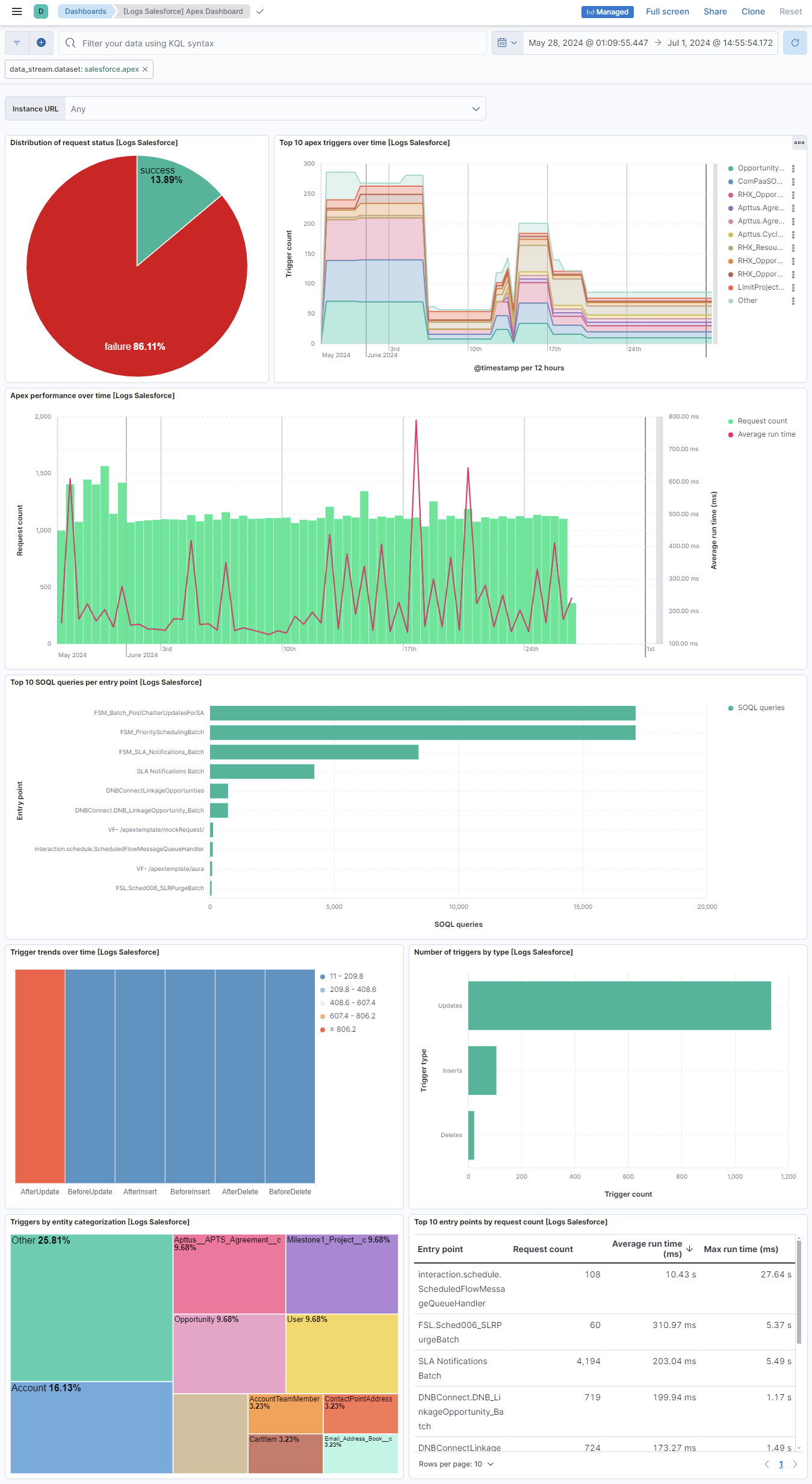
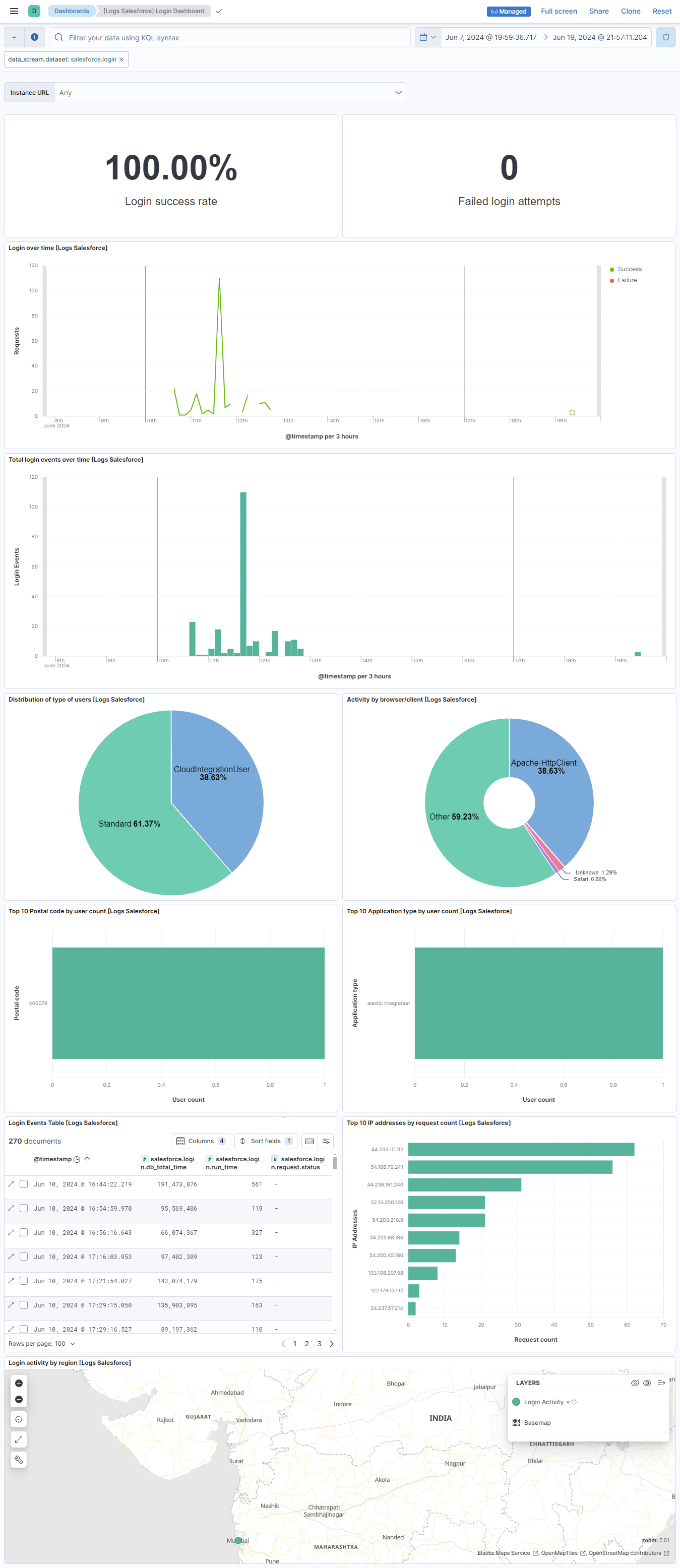
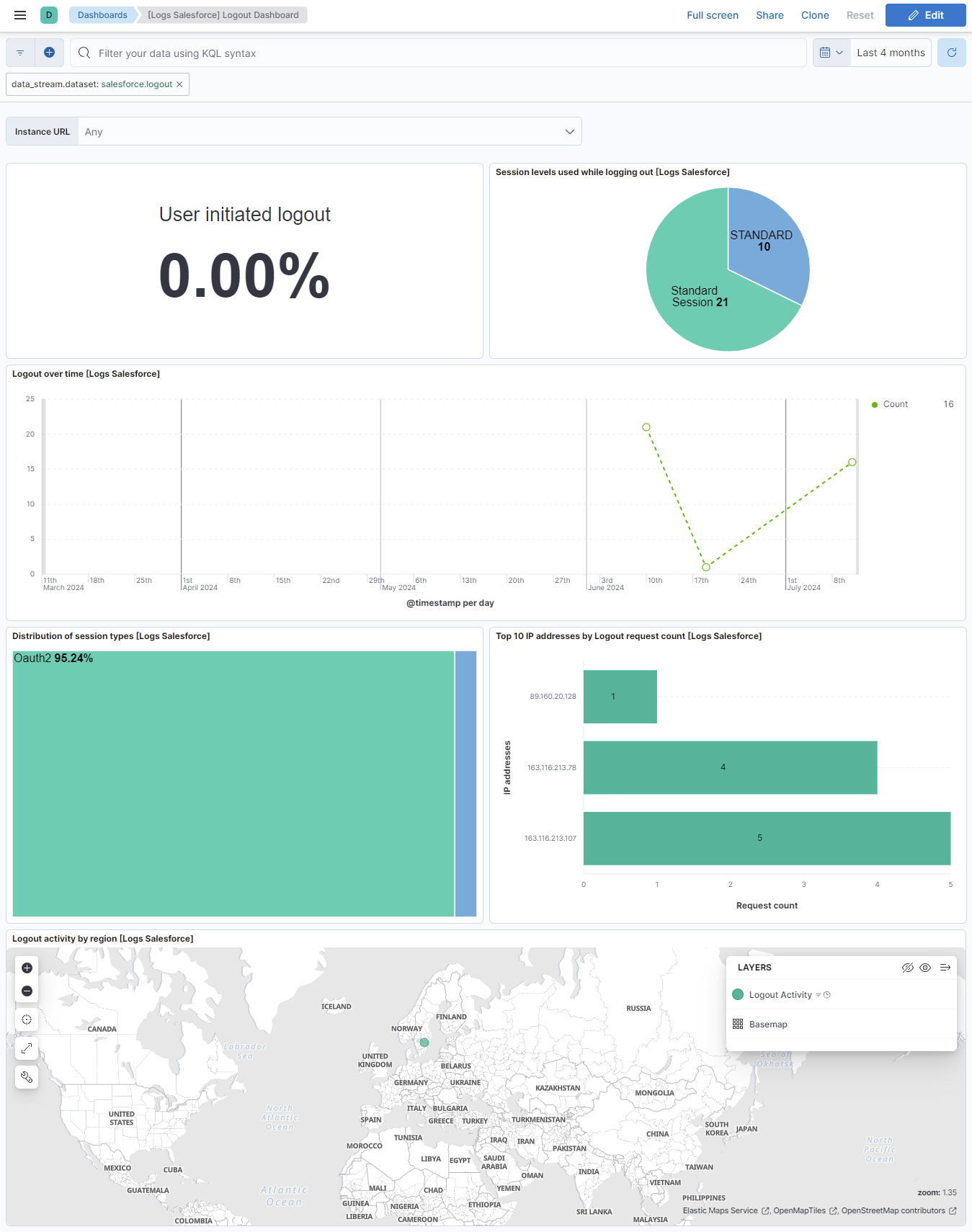
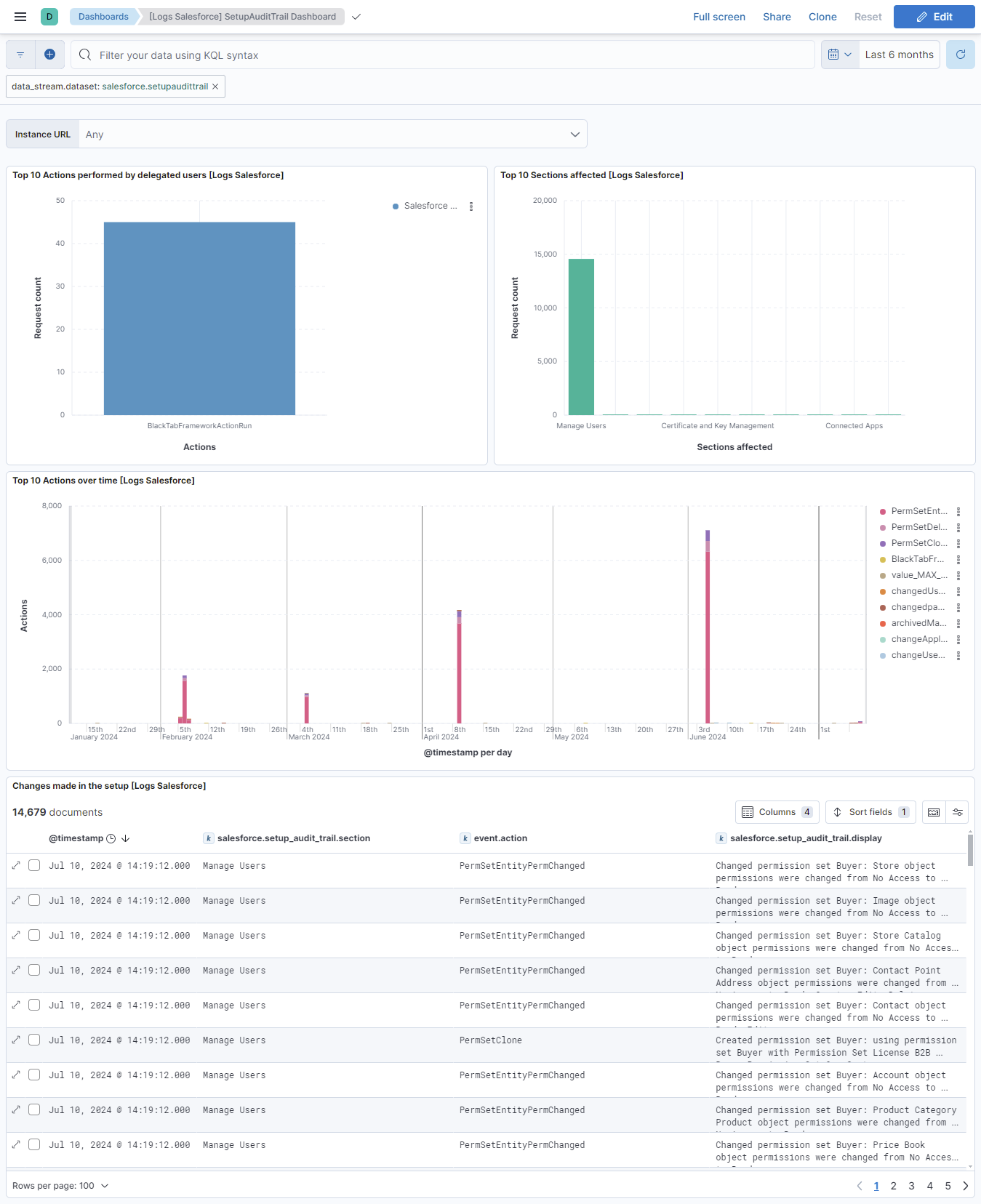
This integration includes one or more Kibana dashboards that visualizes the data collected by the integration. The screenshots below illustrate how the ingested data is displayed.
Changelog
| Version | Details | Minimum Kibana version |
|---|---|---|
| 1.7.0 | Enhancement (View pull request) Improve documentation and field descriptions. |
9.0.0 8.16.0 |
| 1.6.0 | Enhancement (View pull request) Improve documentation |
9.0.0 8.16.0 |
| 1.5.0 | Enhancement (View pull request) Improve documentation |
9.0.0 8.16.0 |
| 1.4.1 | Bug fix (View pull request) Fix query cursor for setupaudittrail |
9.0.0 8.16.0 |
| 1.4.0 | Enhancement (View pull request) Improve documentation |
9.0.0 8.16.0 |
| 1.3.0 | Enhancement (View pull request) Standardize user fields processing across integrations. |
9.0.0 8.16.0 |
| 1.2.0 | Enhancement (View pull request) Allow @custom pipeline access to event.original without setting preserve_original_event. |
9.0.0 8.16.0 |
| 1.1.0 | Enhancement (View pull request) Add support for Kibana 9.0.0. |
9.0.0 8.16.0 |
| 1.0.2 | Bug fix (View pull request) Update links to getting started docs |
8.16.0 |
| 1.0.1 | Bug fix (View pull request) Remove indentation from processors to avoid syntax error when adding new processors. |
8.16.0 |
| 1.0.0 | Enhancement (View pull request) GA release of the Salesforce integration. Enhancement (View pull request) Improve the Salesforce integration documentation and field descriptions. Enhancement (View pull request) Update docs to reflect the use of optional security token. |
8.16.0 |
| 0.15.1 | Enhancement (View pull request) Improve the Salesforce integration documentation. |
— |
| 0.15.0 | Breaking change (View pull request) Revamp Salesforce integration. Enhancement (View pull request) Add dashboards for the salesforce integration. |
— |
| 0.14.1 | Enhancement (View pull request) Update README with reindexing steps. |
— |
| 0.14.0 | Enhancement (View pull request) Enable secrets for sensitive fields. For more details, refer https://www.elastic.co/guide/en/fleet/current/agent-policy.html#agent-policy-secret-values |
— |
| 0.13.1 | Bug fix (View pull request) Disable secrets for older stack versions due to errors. |
— |
| 0.13.0 | Enhancement (View pull request) Enable 'secret' for the sensitive fields, supported from 8.12. |
— |
| 0.12.1 | Bug fix (View pull request) Add null and ignore_missing check to handle event.original field. |
— |
| 0.12.0 | Enhancement (View pull request) Limit request tracer log count to five. |
— |
| 0.11.0 | Enhancement (View pull request) Update the package format_version to 3.0.0. |
— |
| 0.10.1 | Enhancement (View pull request) Add 'Request timeout' configuration. |
— |
| 0.10.0 | Enhancement (View pull request) Rename ownership from obs-service-integrations to obs-infraobs-integrations |
— |
| 0.9.0 | Enhancement (View pull request) Add a new flag to enable request tracing |
— |
| 0.8.0 | Enhancement (View pull request) Make dashboard compatible with meta fields for Kibana 8.6.0 and above. |
— |
| 0.7.0 | Enhancement (View pull request) Salesforce integration package with "logout_stream" data stream. |
— |
| 0.6.0 | Enhancement (View pull request) Salesforce integration package with "login_stream" data stream. |
— |
| 0.5.0 | Enhancement (View pull request) Migrate visualizations to lens. |
— |
| 0.4.1 | Enhancement (View pull request) Added categories and/or subcategories. |
— |
| 0.4.0 | Enhancement (View pull request) Salesforce integration package with "setupaudittrail" data stream. |
— |
| 0.3.0 | Enhancement (View pull request) Salesforce integration package with "apex" data stream. |
— |
| 0.2.1 | Bug fix (View pull request) Add pagination support for "login_rest" and "logout_rest". |
— |
| 0.2.0 | Enhancement (View pull request) Salesforce integration package with "logout_rest" data stream. |
— |
| 0.1.0 | Enhancement (View pull request) Salesforce integration package with "login_rest" data stream. |
— |